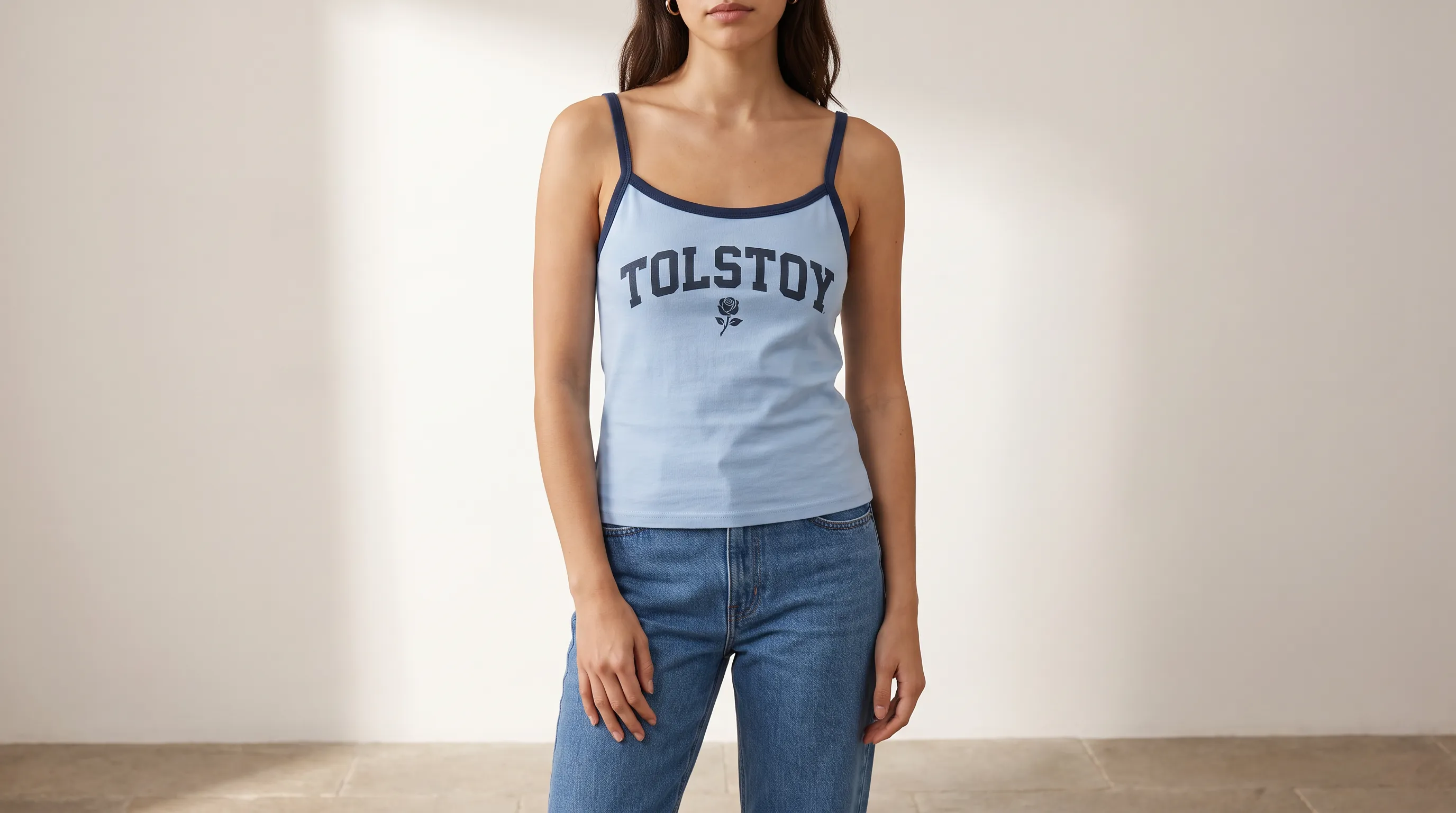
On-model options
Start with an approved flat lay or product image. Create model, pose, crop, and styling options for your team to review.
Create on-model, lifestyle, PDP, and campaign image options from your product catalog, Brand DNA, and approved references. Your team reviews every output before use.

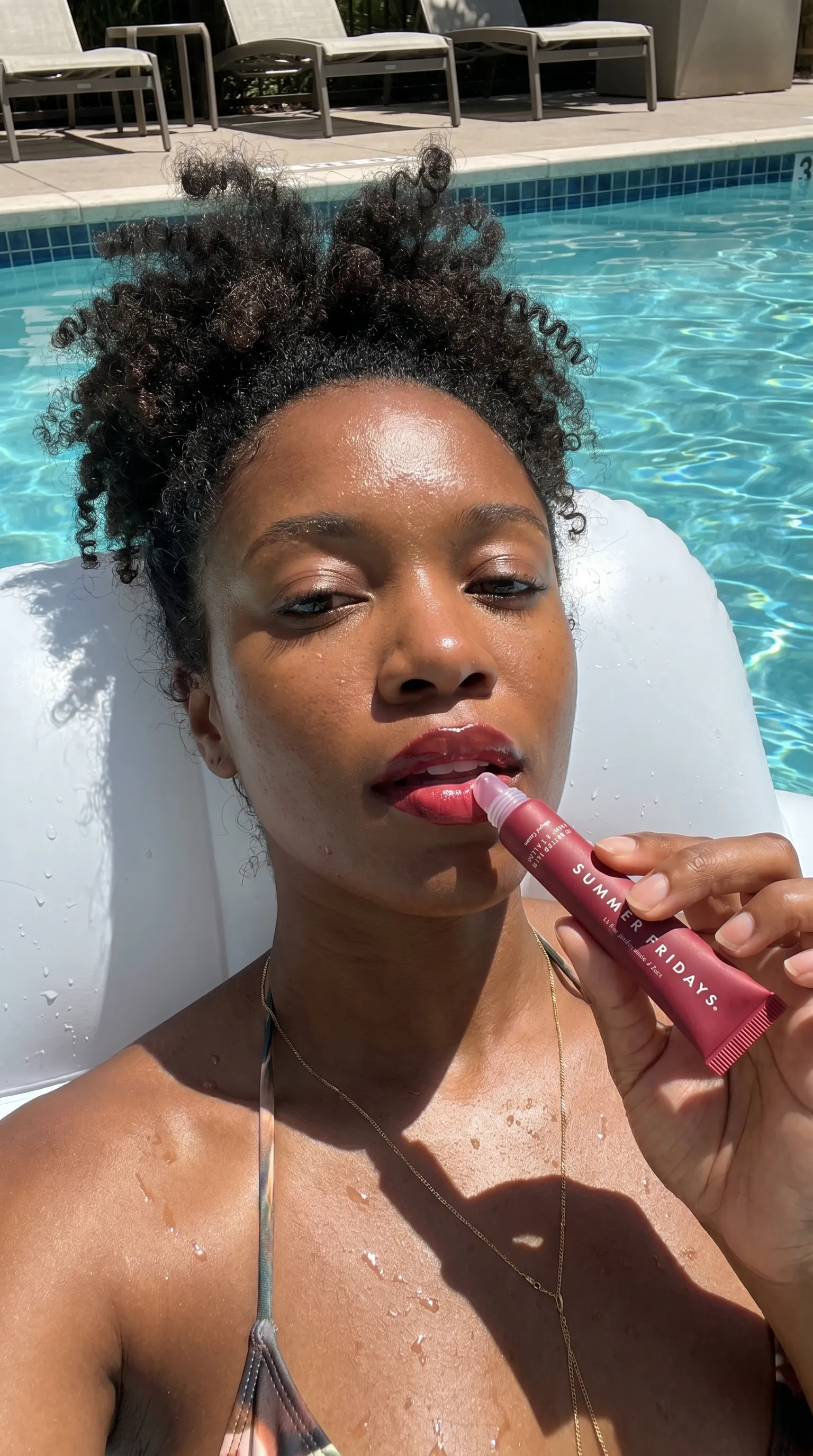
Use AI Studio when the bottleneck is producing more useful photography from approved product and brand inputs—not when the job requires an unreviewed one-click output.
Start with an approved flat lay or product image. Create model, pose, crop, and styling options for your team to review.
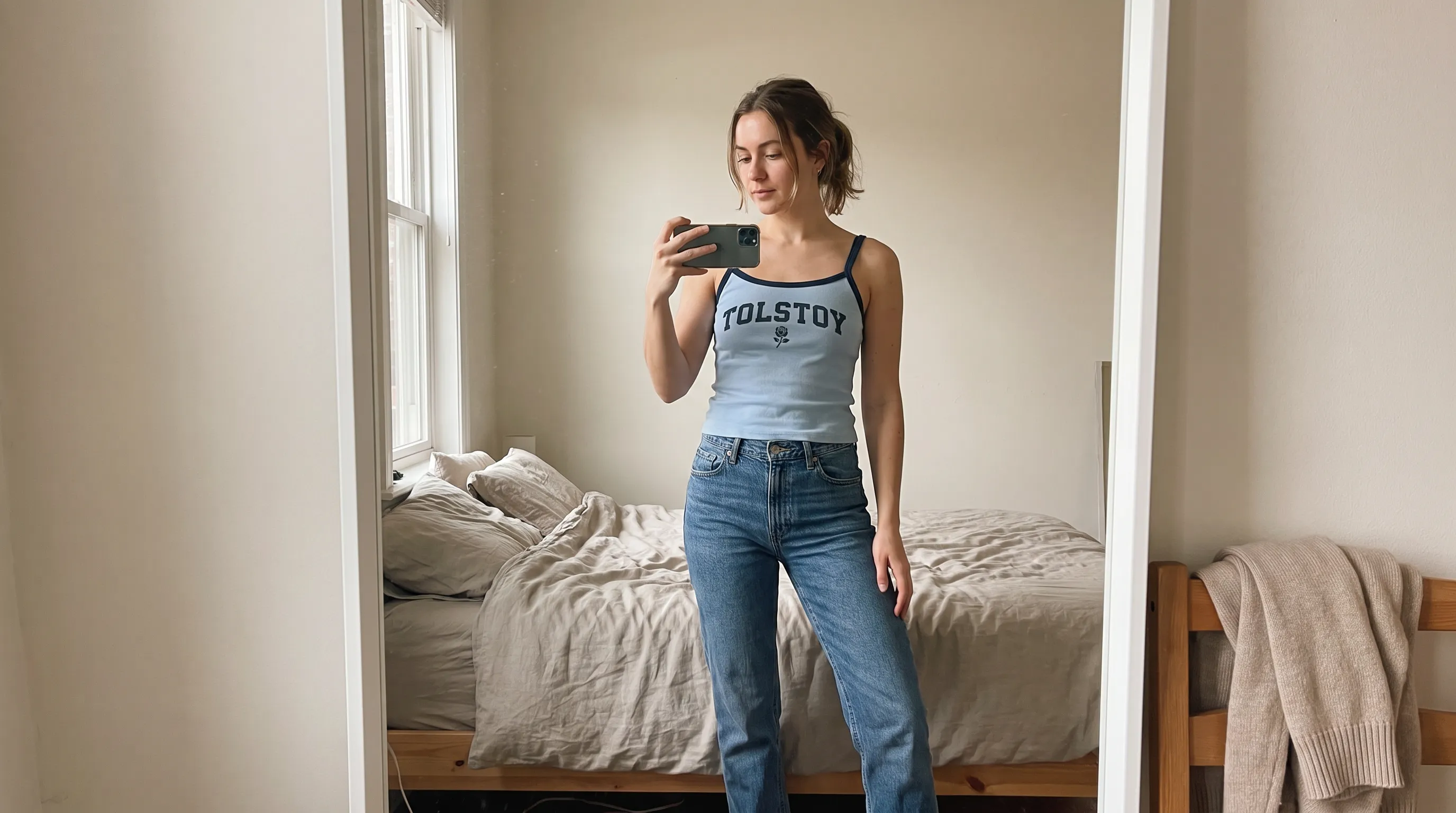
Place the product in a campaign or everyday setting that follows your brief and brand references.
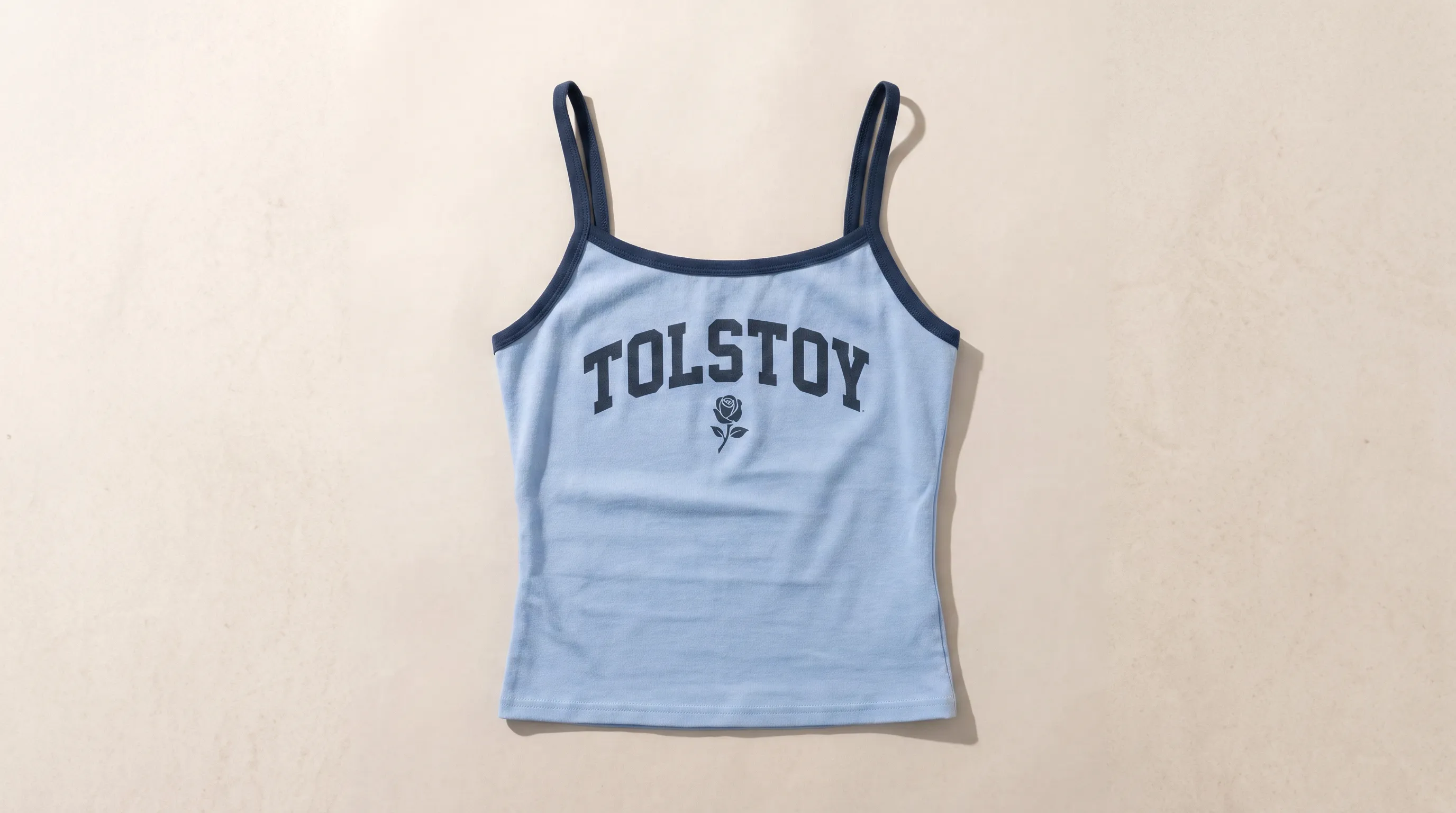
Develop close-ups, editorial crops, backgrounds, and channel-ready image options from the same product context.
Attractive is not the same as accurate. Compare each generated image with its product input and brief. Approve only the result that preserves the details a shopper relies on.
Use the complete product-content review checklist →Shape, construction, scale, and included parts
Texture, finish, drape, transparency, and reflections
Logo, label, packaging text, and distinctive details
Product, trim, print, hardware, and variant accuracy
Pose, styling, background, crop, and destination requirements
Save the creative direction after it works. Keep product-level review in every reuse.

Use an approved catalog image, flat lay, packshot, or other product reference that shows the details the output must preserve.
Add Brand DNA, files, visual references, and a clear brief for the model, setting, crop, or campaign job.
Create a small set of product-photo directions. Keep the input and output connected so reviewers can compare them.
✓ Approve, refine, regenerate, or finish the image manually. The final publish decision stays with your team.
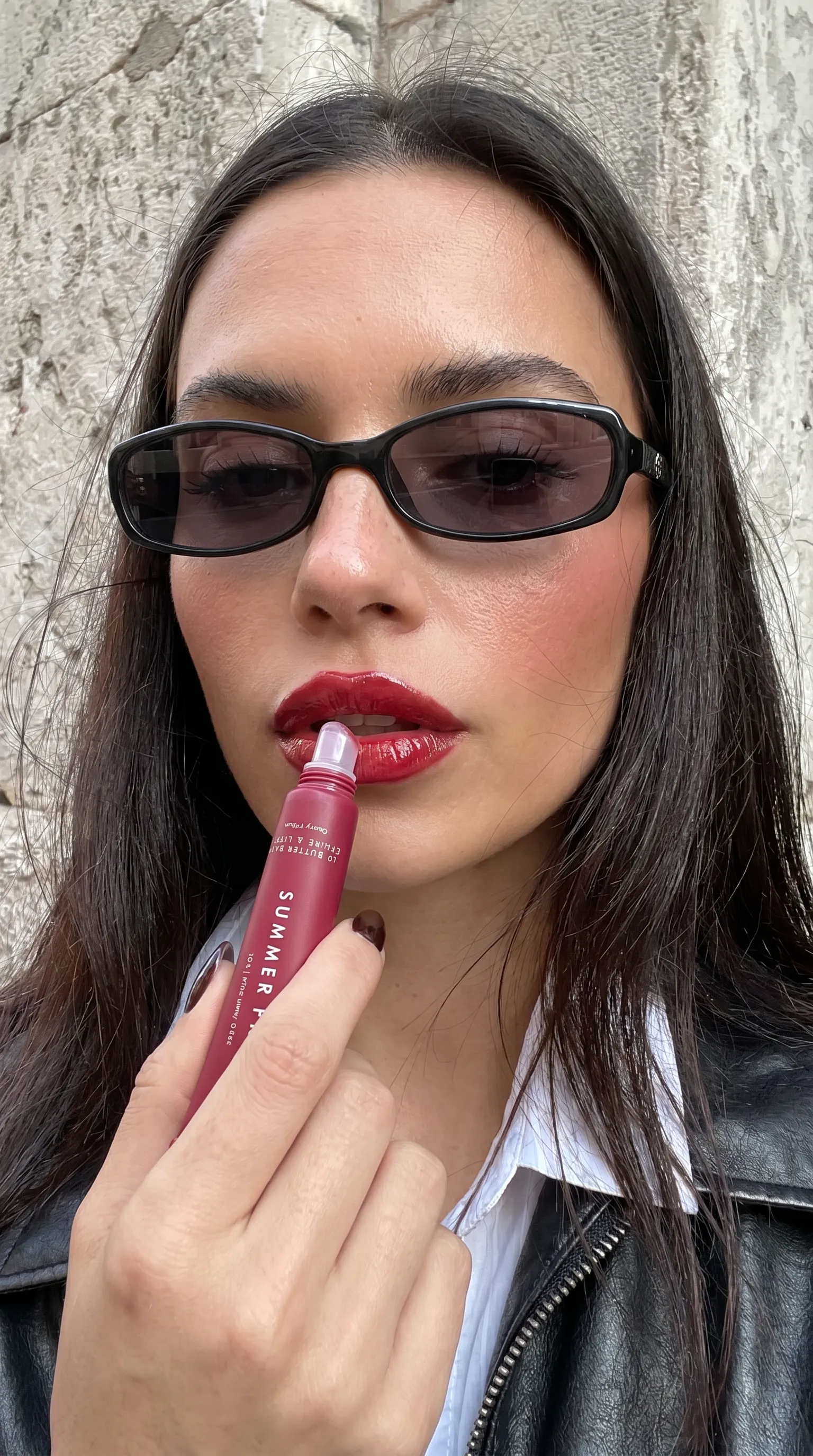
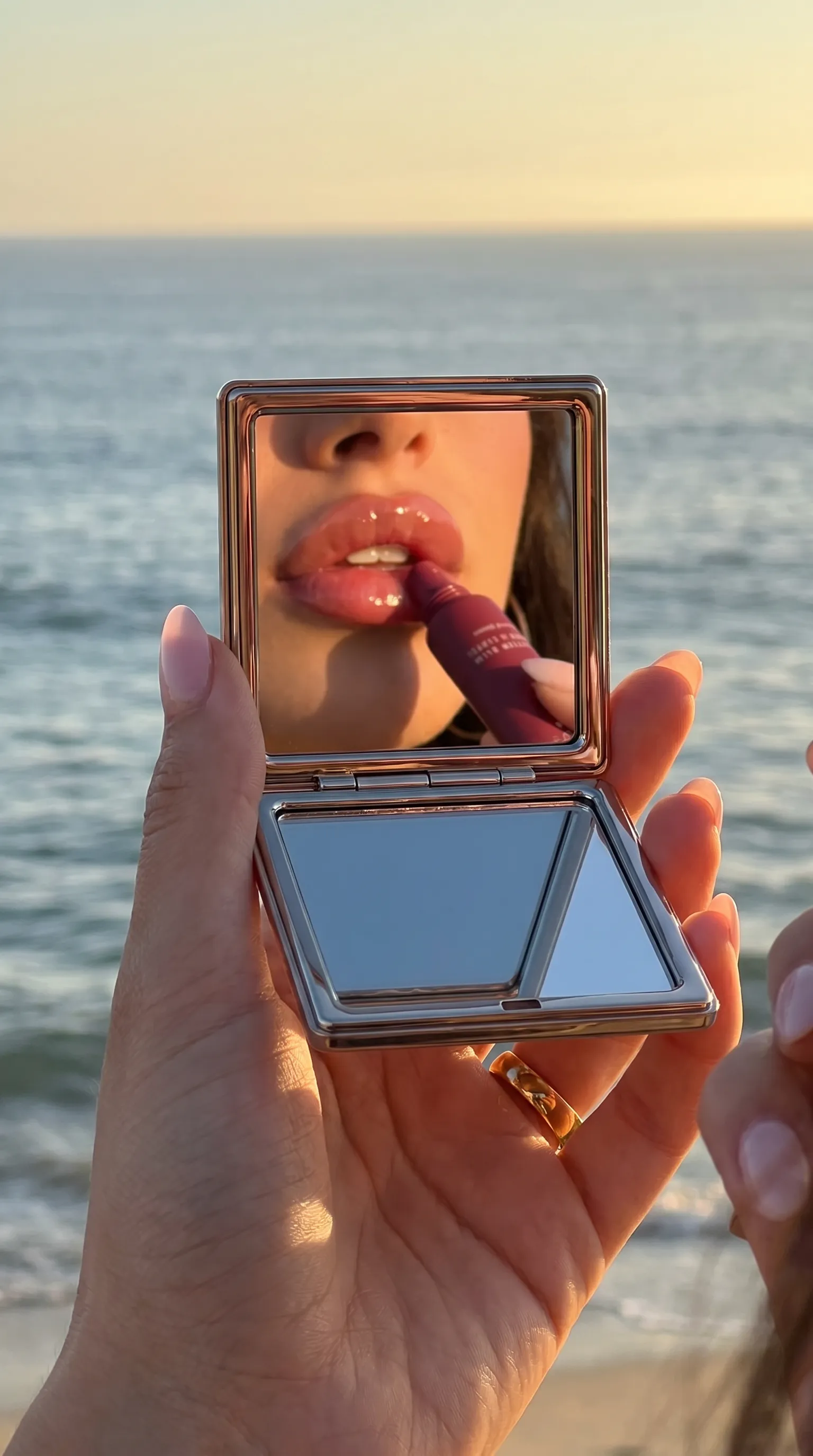
Create front, back, close-up, lifestyle, editorial, background, and campaign options when the product input and workflow support them. Use the approved set on PDPs, collection pages, email, social, or campaign briefs according to each channel's requirements.
Run this across a whole fashion catalog →Create and review product photos in the same workspace as product video, UGC-style creative, ads, templates, Studio Skills, and supported export or publishing workflows.
See the complete AI Studio productOn-model, lifestyle, PDP, and campaign options.
Product, lookbook, and creator-style video workflows.
Reviewable visual variants for paid and organic campaigns.
Export approved assets or use an eligible connected workflow.
AI product photography uses product images, catalog data, and a creative brief to generate new product-photo options. Ecommerce teams use it for on-model images, lifestyle scenes, backgrounds, editorial crops, and campaign variants. Each output still needs a product and brand review before use.
Tolstoy AI Studio supports workflows that use a flat lay or product image to create on-model options. Review garment construction, color, logos, drape, proportions, and styling before an image is approved.
To create on-model images from flat lays at scale, see how the workflow runs across a full fashion catalog.
It can replace or extend some repeatable product-photography jobs, especially when a team needs more scene, model, crop, or background options from approved inputs. Keep traditional capture or deterministic editing for products and details that the generated output cannot reproduce accurately enough.
Brand DNA gives AI Studio context about your brand identity, audience, products, logos, colors, fonts, links, and uploaded files. That context helps guide the brief, but a person still decides whether the generated image matches the product and brand.
AI Studio can use connected catalog and product context to create reviewable image options. Export an approved image or use an eligible Tolstoy publishing workflow. Confirm the destination, file, account, and placement requirements before publishing.
Compare the output with the source product. Check shape, materials, color, proportions, packaging, logos, text, variant details, styling, crop, and the requirements of the final channel. Regenerate or finish the image manually when a material detail is not accurate.
Add the product, set the brief, compare the output, and keep the final approval with your team.