Create Amazon listing images from your catalog
Tolstoy builds an Amazon image set from your Shopify product: a pure-white main image, then lifestyle, infographic and detail images in listing order.
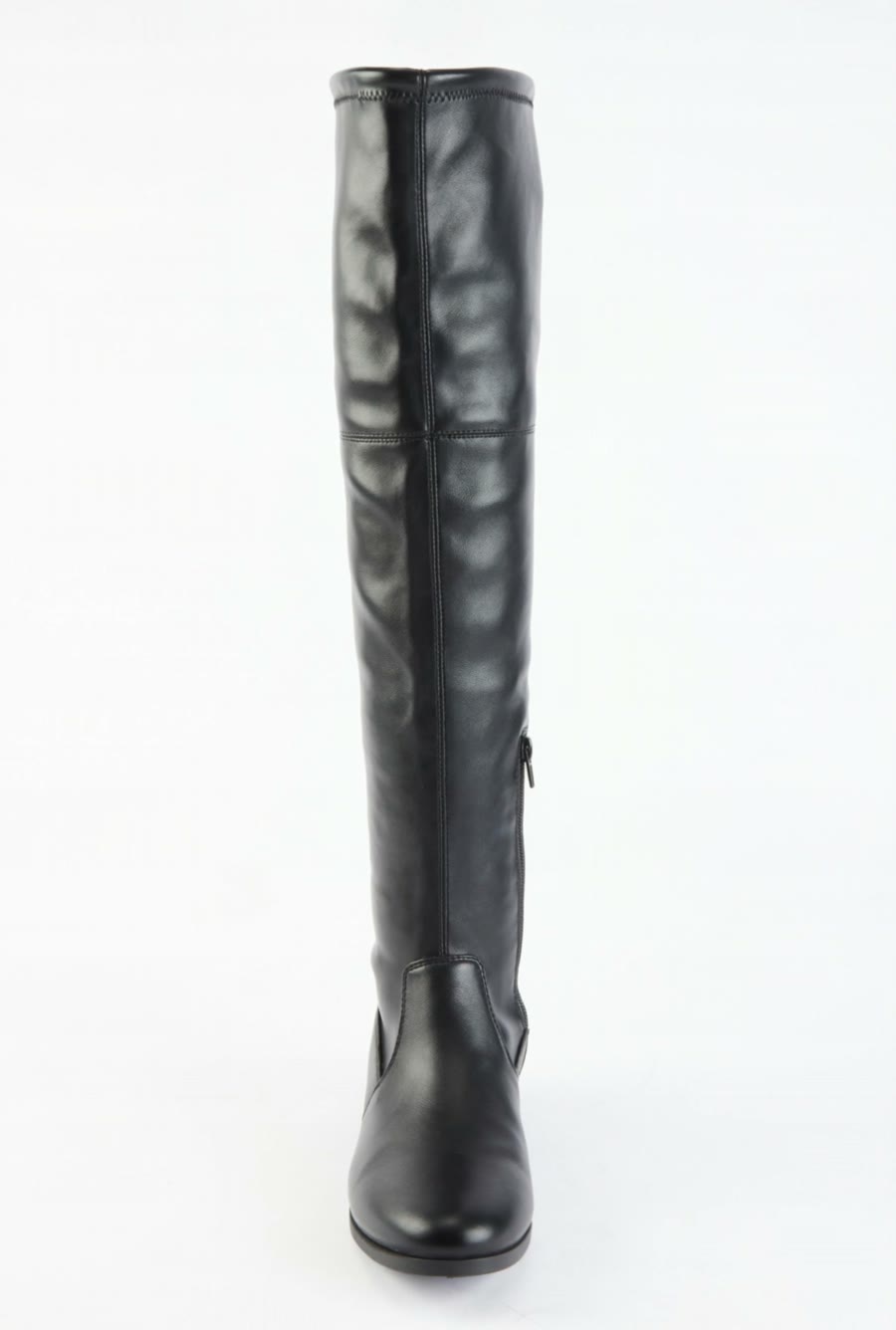
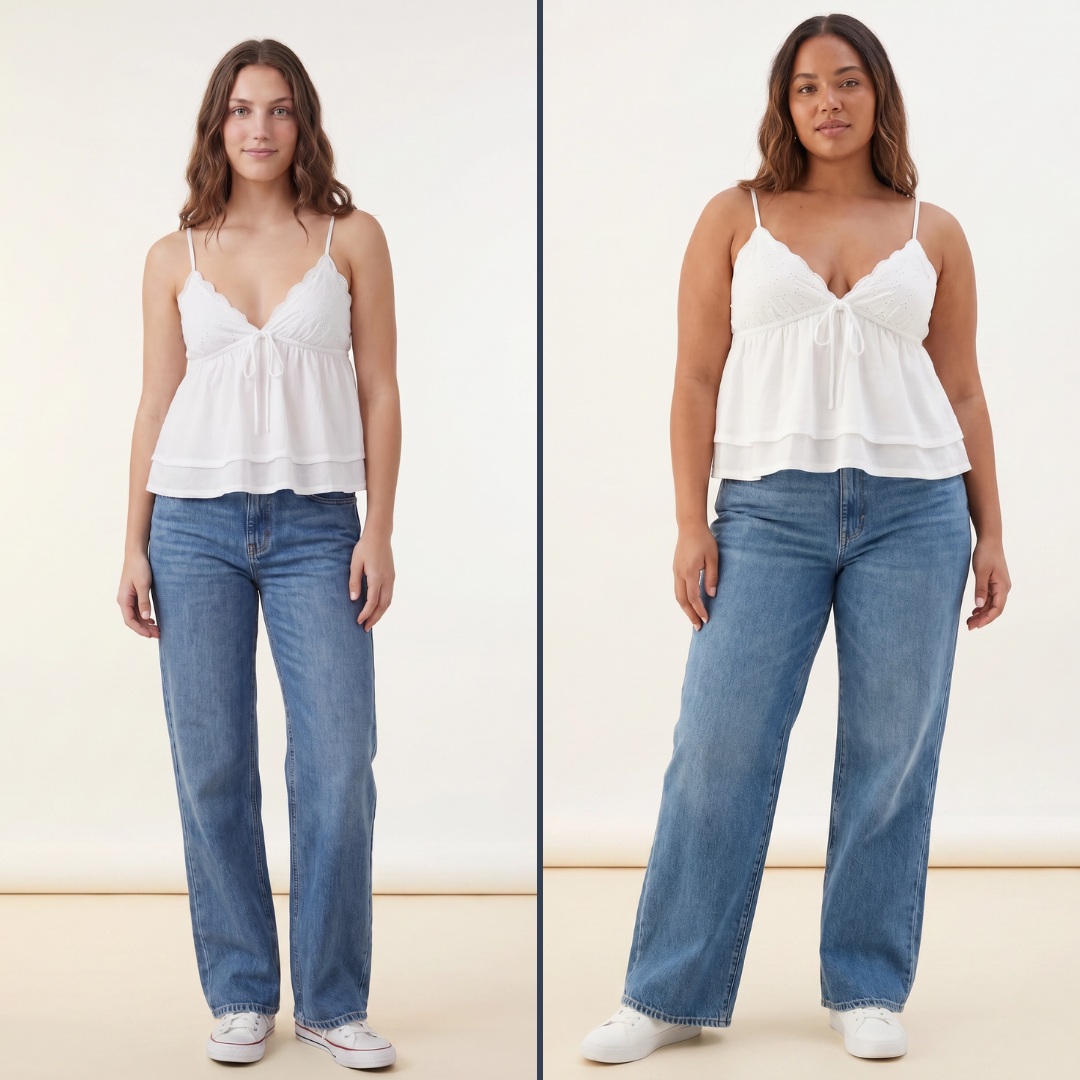
What you need
- The product from your connected catalog, with a clear image of the whole product
- Verified facts for the infographic, such as materials, dimensions and what is in the box
What you get
- A 1:1 main image on pure white, with only the product in frame
- A lifestyle image, an infographic image and a detail image
- Every image labeled and ordered for the listing
How it runs
Tolstoy runs this playbook in 4 steps.
-
Read the product data
The agent reads the product images and details from your catalog, the only source for any product fact in the images.
-
Make the main image
The main image is 1:1 on pure white (#FFFFFF), at least 1000 × 1000 px, with only the product, filling about 85% of the frame.
-
Add the secondary images
A lifestyle image, an infographic with up to three verified features and a close detail follow, all without promotional text.
-
Deliver in listing order
The set comes back labeled and in listing order: main, lifestyle, infographic, detail.
Check the result
- Main image: white to the edges, only the product, no text, logo, prop or watermark, and the product fills most of the frame.
- Read every word on the infographic: each number and feature matches your listing and product data.
- In every image, the product color, shape and label text match the item you ship.
Know the limits
- Tolstoy does not connect to Amazon. You upload the images in Seller Central.
- It follows the core main-image rules. Some categories add their own, so check your category style guide before you upload.
When to use this playbook
Use it when you sell the same products on Shopify and Amazon, and the Amazon listing still uses a cropped store photo or has no secondary images. Starting from your Shopify catalog keeps the product facts the same on both channels. To compare this with other ways to make product images, read the best product photography tools for ecommerce.
Get better results
- Fill in dimensions, materials and what is in the box in Shopify first. The infographic uses only facts it finds in your data.
- Start from a product image that shows the whole product with no props. The main image needs nothing else in frame.
- Ask for more secondary images if your category needs them, for example the product in a hand for scale, or the packaging.
The prompt
“Run this playbook” opens Tolstoy with this prompt as a draft. Pick your products, edit anything, then send it.
Create an Amazon listing image set for my selected product, using my catalog data as the only source of product facts. Image 1 is the main image: 1:1, at least 1000 × 1000 px, pure white background (#FFFFFF), only the product being sold, filling about 85% of the frame, with no added text, logos, watermarks, props or lifestyle elements. Then make a lifestyle image of the product in realistic use, an infographic that calls out up to three verified features, and a close detail of the most important material or construction. Use no promotional text, such as discounts, rankings or "best seller". If an infographic fact is missing, ask only for that. Deliver the images labeled, in listing order: main, lifestyle, infographic, detail. Keep the real product shape, proportions, construction, print, color, logos and readable labels intact. Do not invent product features, claims or reviews.
FAQ
How do I create product photos that meet Amazon and Shopify image requirements?
Make the strictest image first. Amazon’s main image needs a pure white background, a 1:1 frame of at least 1000 px per side, and only the product, with no text or props. The same 1:1 image also fits a Shopify product page, and this playbook builds it from your Shopify catalog so the product facts match on both channels.
Can the infographic include text?
Yes. Secondary images can explain features, so the infographic calls out up to three verified facts from your product data. Read every word before you upload, because spelling and numbers must match your listing.
Can I make a set for another marketplace?
Yes. Name the marketplace in the prompt and the agent follows that platform’s image requirements instead. Check them against the marketplace’s current guide, because the rules change.
Run it on your own catalog
Start free, connect your store, and Tolstoy opens this playbook for you. You review every result before anything goes live.