Add virtual try-on to your product pages
Tolstoy adds a Try on button to your Shopify product pages, so shoppers see the product on one of your models or on their own photo before they buy.
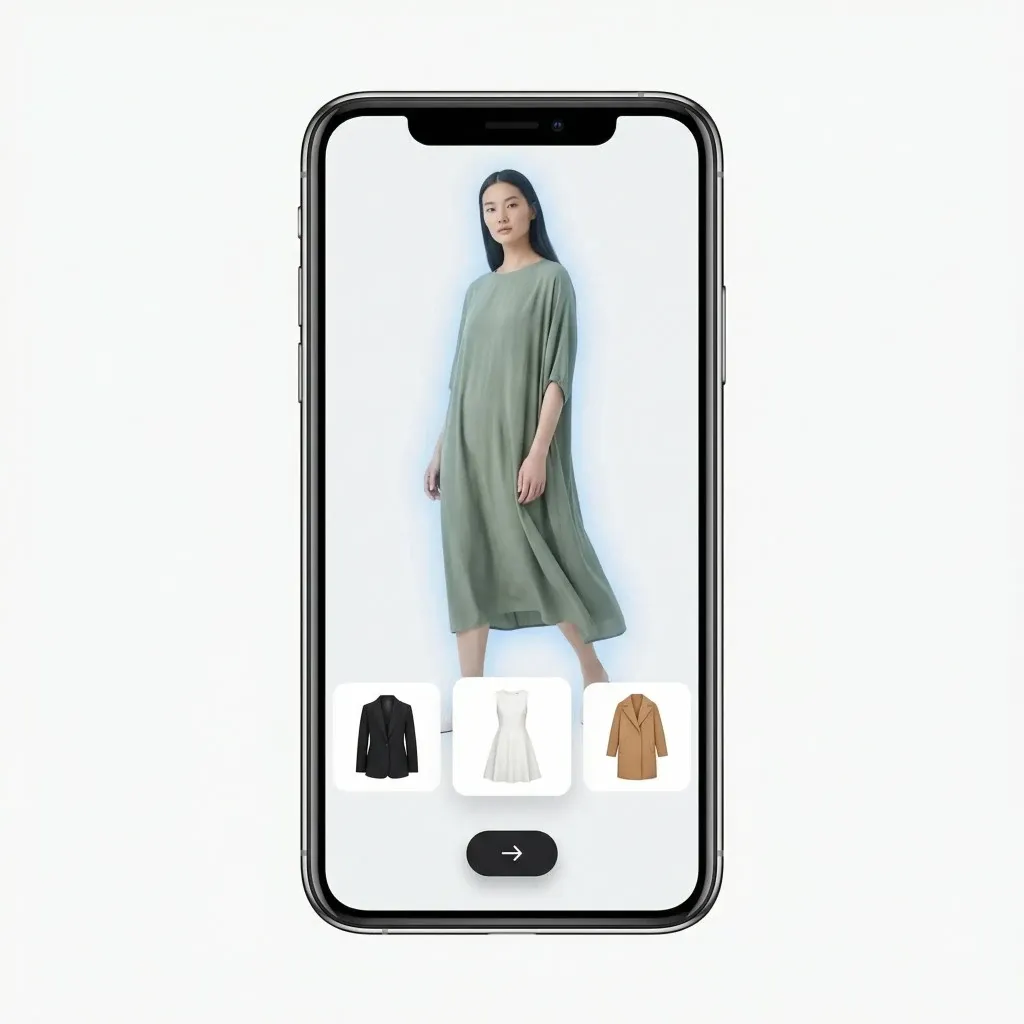
What you need
- A connected Shopify store with the products you want shoppers to try on
- Models selected in Choose My Model, for the model picker (optional; shoppers can also upload a photo)
What you get
- A try-on widget for your product page template, unpublished until you approve it
- A model list for the store, with product-level overrides where you set them
- In Try-On Studio: complementary product suggestions that shoppers can add to the look and to their cart
How it runs
Tolstoy runs this playbook in 4 steps.
-
Choose the experience
Try-On Studio adds a Try on button for a photo upload or a model pick, and Choose My Model shows a row of your model cards instead.
-
Set up your models
You select the models for the store, and a different list for one product where needed; without models, Try-On Studio offers photo upload only.
-
Build for the current product
The agent builds the widget to read the product on each page and follow the variant the shopper selects, so the try-on uses that color or style.
-
Check every state
The agent previews the button, photo upload, model picker, generating state and error state in an unpublished draft.
Check the result
- Run a try-on for two or three variants of one product: the color and print in each result match the variant you selected.
- Compare the try-on image with the product photo: the shape, length, logo and details of the product are unchanged.
- Test the error path in the preview: a blocked photo shows the reason, and a failed try-on shows a Try again button.
Know the limits
- Publishing needs your confirmation. Then you add the Tolstoy Builder block to your product page template in the Shopify theme editor and paste the embed code.
- Each try-on is an AI generation that draws on your Tolstoy plan. A model try-on is saved per product, variant and model, and the next shopper who picks that model sees it at once.
- It shows how the product looks on a person. It does not give size or fit advice.
When to use this playbook
Use it when shoppers cannot tell how a product looks on someone like them, and your product photos show it on one model only. Try-on lets them check the product on one of your models, or on their own photo, without leaving the product page. To decide between try-on and size guidance first, read AI sizing vs. virtual try-on for Shopify fashion stores.
Get better results
- Select models with a range of heights and body shapes, so more shoppers find one close to them.
- Use product-level model lists where a product suits only some of your models.
- Place the Try on button near the size and color selectors, where the shopper already makes the decision.
The prompt
“Run this playbook” opens Tolstoy with this prompt as a draft. Pick your products, edit anything, then send it.
Add virtual try-on to my Shopify product pages with the Try-On Studio template: a Try on button that lets a shopper upload a photo or pick one of my models, see the current product on that person and add suggested complementary products to the look. Use the Choose My Model template only if I ask for a simple row of model cards. Use my connected store and my Choose My Model models. If none are set up, tell me, and build with photo upload only unless I want to add models first. If my workspace has more than one store, ask which one. Keep the real product shape, color, print and logos. Do not invent product claims, sizing or fit advice. Build an unpublished draft and check the preview, including the generating and error states. Do not publish without my approval.
FAQ
How do I add virtual try-on to my Shopify product pages?
Connect your Shopify store, run this playbook and approve the draft. You build one widget for the product page template, not one per product, because the widget reads the current product on each page. You then place it once in the Shopify theme editor.
Do shoppers need an account to use try-on?
No. Try-On Studio works without a login. Each uploaded photo goes through content moderation before the try-on runs, and a photo that fails is blocked with the reason shown to the shopper.
Can shoppers buy the whole look?
Yes, in Try-On Studio. The result shows complementary products by category. The shopper picks pieces, generates the combined look and adds the items to the cart. Sold-out items stay visible but are not added.
Run it on your own catalog
Start free, connect your store, and Tolstoy opens this playbook for you. You review every result before anything goes live.