
Quick answer: Sidekick integrations bring app context into Shopify conversations
Shopify Sidekick integrations let supported apps surface their data and safe, scoped workflows inside Sidekick. Instead of opening every app to look for a campaign, return, review, promotion, or storefront project, a merchant can ask Sidekick a question in everyday language and approve the relevant app for that conversation.
- Data extensions help Sidekick search app data and answer with app-specific context.
- Action extensions can take the merchant to the right app screen and stage a supported change for review.
- Approval stays explicit: Shopify says Sidekick asks before using an installed app, and activation lasts for the current conversation.
- The current guide lists 18 apps: they span marketing, customer experience, promotions, products, and store operations.
- Tolstoy is available in Sidekick: merchants can find Tolstoy media and inspect Player and AI Widgets projects from Shopify admin.
Tolstoy is now available in Shopify Sidekick. Merchants who use Tolstoy with Shopify can open Sidekick in Shopify admin and ask it to find Tolstoy media or inspect Player and AI Widgets projects.
How do Shopify Sidekick integrations work?
Shopify Sidekick is the AI commerce assistant built into Shopify admin. It can analyze store data, edit supported Shopify resources, create content, generate simple internal apps, and guide merchants through operational tasks. Shopify presents proposed changes for review before they take effect.
Sidekick is Shopify’s native assistant. If you are trying to connect an external assistant instead, our ChatGPT and Shopify integration guide covers that separate workflow.
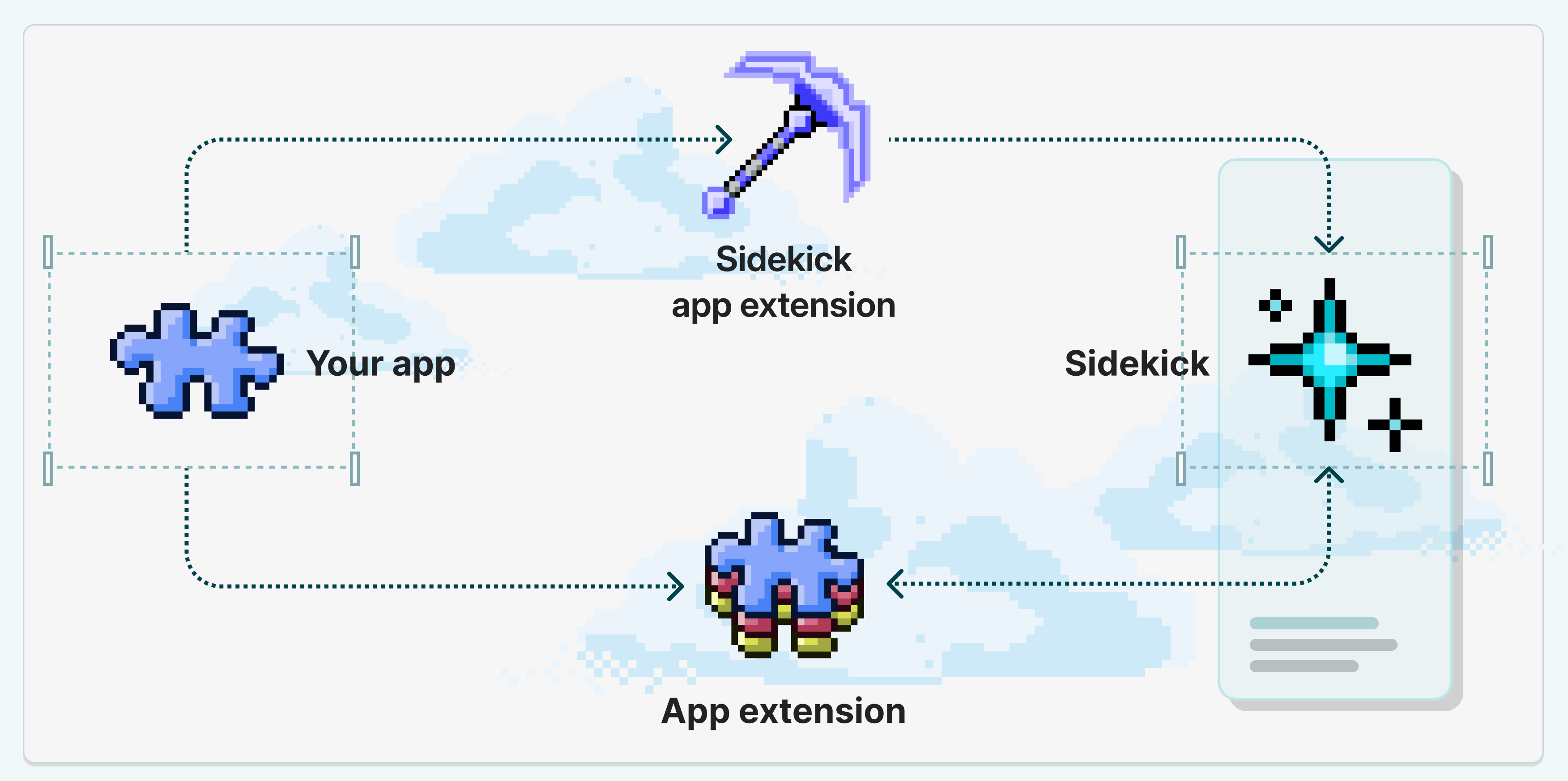
Sidekick App Extensions connect selected data and workflows from installed apps. According to Shopify’s developer documentation, Sidekick can search an app, answer with its context, and navigate the merchant to the right place.
| Sidekick capability | What it does | Merchant control | Example |
|---|---|---|---|
| Native Shopify capability | Works with Shopify data and admin tasks | Merchant reviews supported changes | Analyze product sales or prepare an order edit |
| App data extension | Retrieves information from an installed app | Merchant approves the app for the conversation | Find an email campaign, product review, or Tolstoy widget |
| App action extension | Routes the merchant to a relevant app workflow and can stage a supported action | Merchant confirms the change in the appropriate interface | Open the correct campaign or prepare a review response |
“Works with Sidekick” describes a scoped extension, not unlimited app access. Each developer defines the available data or actions. Shopify currently limits Sidekick integrations to 20 apps per user on a store.
Which apps work with Shopify Sidekick?
Shopify launched Sidekick App Extensions with more than 15 partners in Spring 2026 and opened the framework to any developer in its ecosystem. The official Apps that work with Sidekick guide currently lists the following apps as of August 7, 2026.
| Category | Apps in Shopify’s current guide | Questions Sidekick can help route |
|---|---|---|
| Marketing | Klaviyo, TikTok, Seguno, Mailchimp, Checkout Links, Bloomreach | Campaign performance, email activity, ads, and checkout-link workflows |
| Customers | Loop, AfterShip Returns, Judge.me, Smile, Yotpo | Returns, reviews, loyalty, and customer feedback |
| Promotions | Abra, Discount Kit, Kitenzo | Promotion performance, discounts, gifts, and bundles |
| Products | Printful, Syncee | Product sourcing and catalog additions |
| Store operations | Matrixify, Avia | Bulk store-data operations and in-store traffic |
Use Shopify’s live guide as the source of truth because the list can change. An app appearing in the Shopify App Store does not automatically mean it has a Sidekick extension.
How do you use Sidekick with a third-party app?
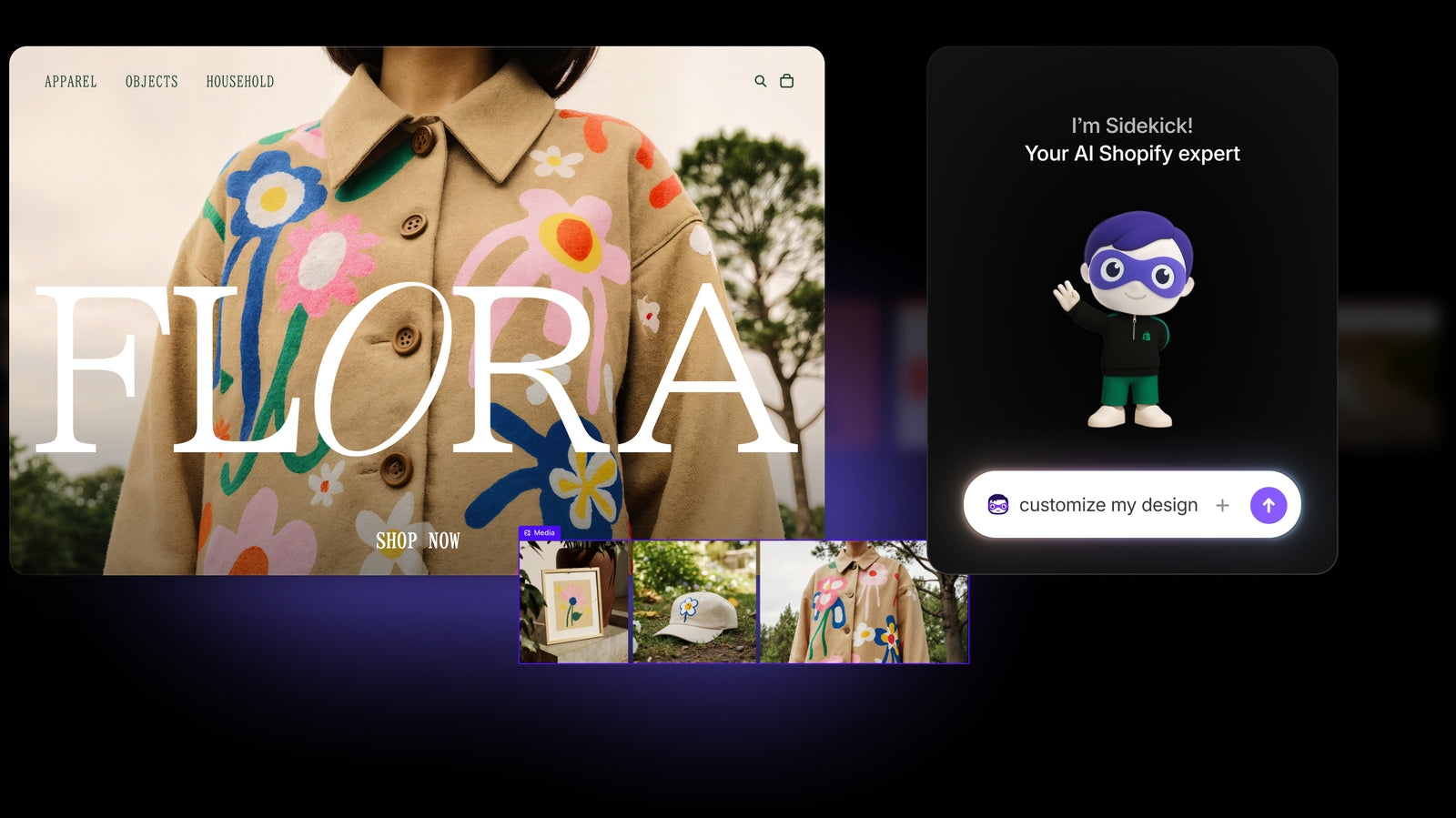
To use one:
- Install an app that supports Sidekick. Start with Shopify’s current Sidekick app guide or the app’s own release notes.
- Open Sidekick in Shopify admin. Sidekick is available from the admin on desktop and mobile.
- Ask for a job, not a feature. For example, ask “Which recent email campaigns had the highest click rate?” instead of “Use my marketing integration.”
- Approve the app. Shopify’s Sidekick help documentation says the app is activated for the current conversation only.
- Review the answer and follow the app link. For supported actions, inspect the proposed change before confirming it.
If several installed apps could answer the question, Shopify says Sidekick selects the most relevant one based on app capabilities and user preferences. A specific prompt helps. Include the object, timeframe, status, or channel you care about.
What should you check before relying on a Sidekick integration?
A useful extension handles a few recurring jobs cleanly. Check four things before relying on one:
- Clear objects: Can it identify a campaign, return, review, media asset, or storefront widget without a vague prompt?
- Enough context: Do results include names, status, dates, source, and a direct link?
- Tight permissions: Can the merchant inspect data without granting unnecessary write access?
- A useful handoff: Does the result open the exact app screen where specialized editing, approval, or reporting happens?
That last point is especially important for customer-facing content. A chat answer can find an asset or flag a draft. Creative quality, product accuracy, mobile presentation, and publication still deserve a deliberate review.
How the Tolstoy Sidekick integration works
Tolstoy’s Sidekick integration connects the current Shopify store to its Tolstoy media library, Player widgets, and AI Widgets projects. It helps merchants find visual content and check a storefront project’s status without searching through the Tolstoy workspace first.
Inside Sidekick, merchants can search the current store’s Tolstoy media and inspect projects from Tolstoy AI Player and AI Widgets. Results include concise metadata and a direct Tolstoy link so the merchant can open the right asset or project without hunting through the library.
| Merchant job | What the Tolstoy integration can return | Example prompt |
|---|---|---|
| Find visual assets | Videos, images, or galleries matched by name or description | “Find Tolstoy videos about the summer collection.” |
| Audit live experiences | Published Player widgets and AI Widgets projects for the current store | “Which Tolstoy widgets are live right now?” |
| Find unfinished work | Draft widgets, optionally filtered to Player or AI Widgets | “Show me draft Tolstoy AI Widgets updated most recently.” |
| Open one project | Project name, status, type, updated time, previews when available, and a Tolstoy workspace link | “Open the Tolstoy widget called PDP Stories.” |
Visual-content work often starts with a status check: what assets exist, which experiences are live, and where the newest draft lives. Sidekick can answer those questions while Tolstoy remains the place to create, edit, review, and publish the work.
When you are ready to change or publish an item, open it in Tolstoy from the Sidekick result.
A practical Sidekick and Tolstoy workflow
Use Sidekick to locate the work, then use Tolstoy to execute it:
- Ask Sidekick what already exists. Search for relevant product videos, campaign images, galleries, or storefront widgets.
- Check publication state. Separate live projects from drafts before planning a change.
- Open the exact item in Tolstoy. Review the asset, widget configuration, product connections, and storefront placement.
- Create or edit in the right workspace. Use Tolstoy to produce the customer-facing experience, then complete brand and product review.
- Publish deliberately and measure the right outcome. Verify the live storefront and evaluate downstream shopping behavior rather than treating a chat answer or media view as conversion proof.
For a broader map of Shopify’s AI stack, read Shopify’s AI initiatives in 2026. If your immediate job is building a customer-facing module, see how to create custom Shopify PDP widgets with AI.
Find Tolstoy work from Shopify Sidekick
Sidekick saves time when the request is specific: find the campaign, check the return, inspect the review, locate the asset, or open the right project.
For Tolstoy users, that means media and widget context is available inside Shopify admin. Ask Sidekick for an asset, live widget, or recent draft, then open the matching Tolstoy item when you are ready to work on it.
Explore the Tolstoy Shopify integration to connect product context, create shoppable video, manage visual media, and publish storefront experiences.
Sources and update note
This guide was updated on August 10, 2026. Shopify’s supported-app list and Sidekick capabilities can change, so use Shopify’s current documentation when planning a rollout.
Frequently asked questions
What are Shopify Sidekick integrations?
Shopify Sidekick integrations are app extensions that let supported Shopify apps provide data or scoped actions inside a Sidekick conversation. A data extension can help Sidekick find and explain app information. An action extension can route the merchant to the right app screen and stage a change for review.
Which apps work with Shopify Sidekick?
Shopify’s Sidekick App Store guide currently includes apps across marketing, customer experience, promotions, product sourcing, and store operations. Examples include Klaviyo, TikTok, Loop, Judge.me, Smile, Yotpo, Matrixify, Seguno, Checkout Links, and Avia. The supported list changes as developers release new extensions.
How do I use a third-party app with Sidekick?
Install a supported app, open Sidekick in Shopify admin, and ask a question that matches the app’s capabilities. Before Sidekick uses the app, Shopify asks for approval. The app is activated for that conversation only.
What can the Tolstoy Sidekick integration do?
The Tolstoy integration can search the current store’s Tolstoy media library, list Player and AI Widgets projects, filter widgets by type or publication status, and open the relevant item in Tolstoy.
How do I use Tolstoy in Shopify Sidekick?
Open Sidekick in Shopify admin and ask it to find Tolstoy media, list live or draft widgets, or open a specific Player or AI Widgets project. Use a specific prompt with a product, campaign, project name, or publication status for the most useful result.
Create with Tolstoy
Put these ideas into practice
Turn your product ideas into AI images, videos, and shopping experiences.