Hand your weekly catalog photo check to an AI employee
An AI employee checks every color for missing photos each week, so your team fixes gaps before a launch. Plus a one-time promotion price audit.
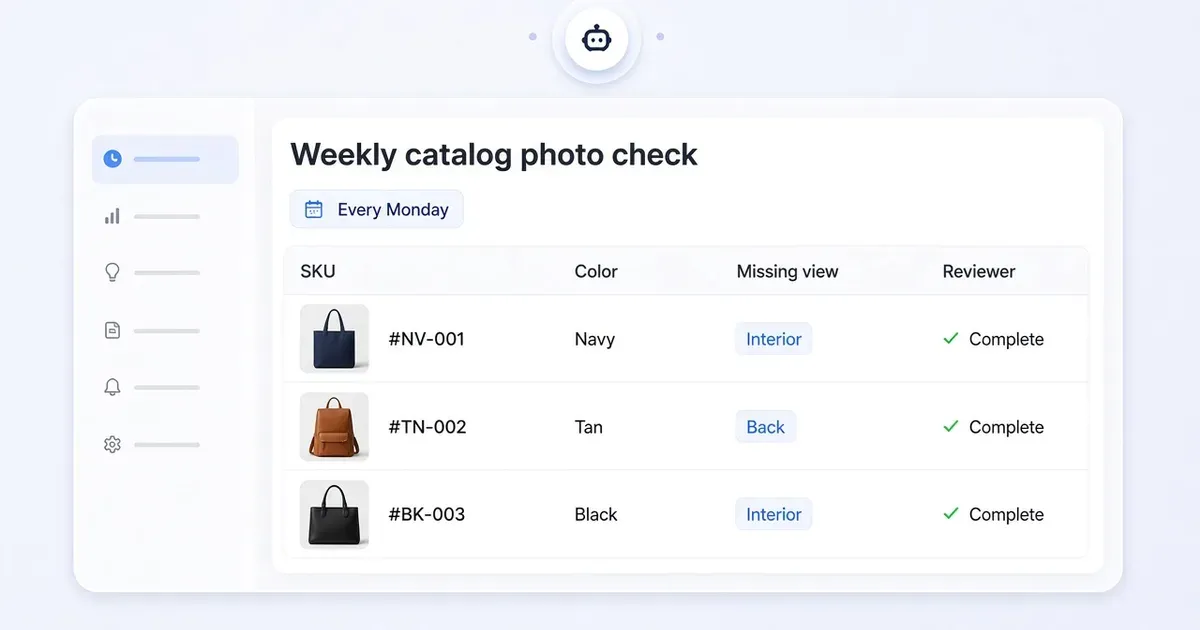
A weekly catalog photo check
Opening a new color for sale takes a few clicks. Catching the product page that still shows the old color takes a second pair of eyes. Give that job to an AI employee and get a gap list before every collection launch. Brighton’s Clayton Organizer Bag shows the standard to aim for: its gallery shows the exterior, interior and back of the bag in several colors. Clayton Organizer Bag
- Start with one collection. Give the bot the active styles and colors, their product URLs, the images assigned to each color and the views you require. A catalog export with labeled images works too.
- Open Ecom Manager. From Home, open ShopBots → + → ShopBot Templates → Ecom Manager. Review the first task, the data it needs and its approval settings, and connect your Shopify store.
- Run it once. “For each active color in this collection, check for a front, interior, and back photo. Return the product URL, color, missing view, and image you checked. If you can’t tell which color an image shows, flag it for review. Leave the catalog unchanged.” Compare the report with one complete color and one known gap.
- Put it on a schedule. Agree a weekly time and a reviewer in the bot conversation, and confirm the routine appears under Upcoming. Each week the reviewer turns the gaps into a shot list. ShopBot setup and routines
| SKU | Shopify color | Missing view | Evidence | Reviewer |
|---|---|---|---|---|
| BAG-01 | Navy | Interior | Navy product page shows front and back only | Merchandising |
Audit a Shopify promotion with an AI ecommerce assistant
A shopper sees a sale price on the product page, plays the product video, and sees a price again. Both must match. A one-time assignment compares the two before the promotion goes live. BÉIS’s Sport Pack in Black is the worked example; use your own promotion, currency and variant. Sport Pack in Black
- Collect the evidence. The approved offer, the variant’s regular and sale prices, the product URL, the market, and screenshots of the product page and its video card on desktop and mobile.
- Brief Ecom Manager. “Check this SKU in this market against the approved offer. For the product page and video card on each device, list expected price, observed price, and source. Flag a missing screenshot as unknown. Draft one correction for each mismatch.”
- Send each fix to its owner. Reproduce each mismatch in the same theme, market and variant, then send the screenshot and expected value to the person who owns the price display.
- Close it out. After the change, repeat the four checks and keep the before-and-after evidence with the offer. Ecom Manager tasks and review controls
What to do
- Give the AI employee one collection and one clear rule.
- Run it once, check it against a variant you know, then schedule it weekly.
- Name a reviewer who turns each report into a shot list.
Set it up on your own store
Start free, connect Shopify, and run this workflow on your own products. You approve every result before shoppers see it.
FAQ
What is an AI employee in Tolstoy?
A ShopBot with a clear assignment, the data it needs and a reviewer. Ecom Manager is the ShopBot template for store operations work such as catalog checks and promotion audits.
Can the AI employee run on a schedule?
Yes. Once the first report is right, agree a weekly time and a reviewer in the bot conversation, and the routine appears under Upcoming.
Will it change my catalog?
Only if you ask it to. The briefs in this guide tell the bot to leave the catalog unchanged and return a report for your team.
What should the first assignment be?
One collection and one clear rule, such as a front, interior and back photo for every color. Run it once, compare it with a variant you know, then schedule it.
Open it in Tolstoy
Connect your Shopify store and Tolstoy sets up this workflow with you, step by step.