Launch a Meta ad for one Shopify product, ready to approve
Tolstoy prepares a paused Meta ad from one Shopify product, with objective, budget, schedule and preview in one place, so you approve spend with confidence.
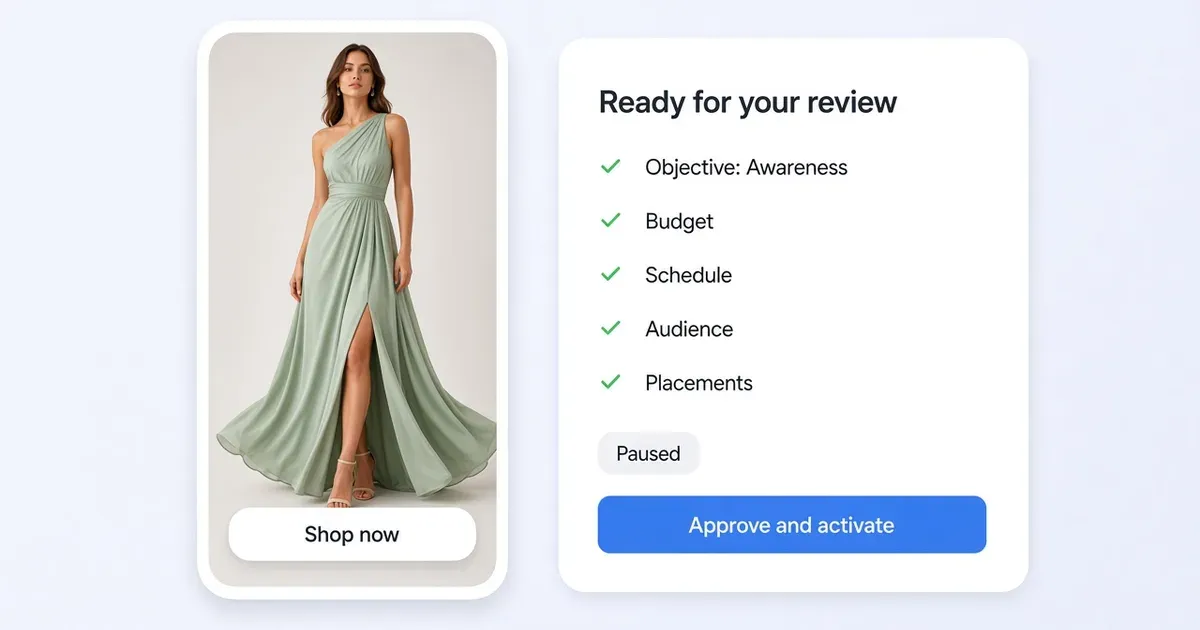
One product, one brief, one paused ad
You have one product to push and a budget to protect. Tolstoy turns a short brief into a paused Meta ad and puts everything the budget owner needs on one screen: objective, account, audience, placements, budget, dates and a live preview. The worked example is Bridal Babes’ Garden Dress, with an approved image that shows its one-shoulder silhouette. The Garden Dress
Advertising a whole catalog? Use Meta catalog video ads.
Prepare the ad in four steps
- Write the decision first. For this example the goal is awareness among bridesmaid-dress shoppers. Note the audience, region, approved budget, start and end dates, destination URL and who approves spend. For a purchase goal, write a sales brief and confirm purchase tracking.
- Connect the right Meta account. In Tolstoy, open Ads → Meta ads → Connect Meta Ads with an account that manages the brand’s ads. Select the ad account in Manage campaigns, choose Create new ad, then the project with your approved image or clip.
- Give the agent the brief. “Prepare an awareness campaign for the Garden Dress using this approved image and product URL. Use the audience, dates, and budget in my brief. Show the ad preview, destination, placements, and proposed delivery settings. Leave activation for my review.” Open the preview on a phone and check that the dress matches the ad.
- Approve, then follow delivery. Once the budget owner approves, review the campaign, ad set and ad in the right account and date range. Read delivery status and spend next to reach and frequency. Tolstoy Meta Ads setup and campaign management
What to report. Campaign name, date range, spend, reach and frequency, plus landing-page visits where available. Reach answers the awareness question; purchases need purchase data.
What to do
- Write the goal, audience, budget and dates before you open Meta.
- Let Tolstoy prepare the ad paused and review the preview on a phone.
- Activate only after the budget owner approves.
Set it up on your own store
Start free, connect Shopify, and run this workflow on your own products. You approve every result before shoppers see it.
FAQ
Does Tolstoy start spending on Meta by itself?
No. The agent prepares the campaign paused and shows you the preview, destination, placements and delivery settings. Activation is a separate step for the person who owns the budget.
How do I connect my Meta ad account?
In Tolstoy, open Ads → Meta ads → Connect Meta Ads with an account that can manage the brand’s ads, then select the ad account in Manage campaigns.
Which numbers should I read first for an awareness ad?
Spend, reach and frequency for the campaign and date range, plus landing-page visits where available. A purchase goal needs a sales campaign with working purchase tracking.
Can I advertise a whole catalog instead of one product?
Yes. Use the Meta catalog video ads playbook to sync product videos to your Meta catalog and prepare a paused Advantage+ catalog campaign.
Open it in Tolstoy
Connect your Shopify store and Tolstoy sets up this workflow with you, step by step.