Show the right swatch video for every Shopify shade
Shoppers see the exact shade they pick. Give each Shopify variant its own swatch video in the product gallery, with shared images kept on every shade.
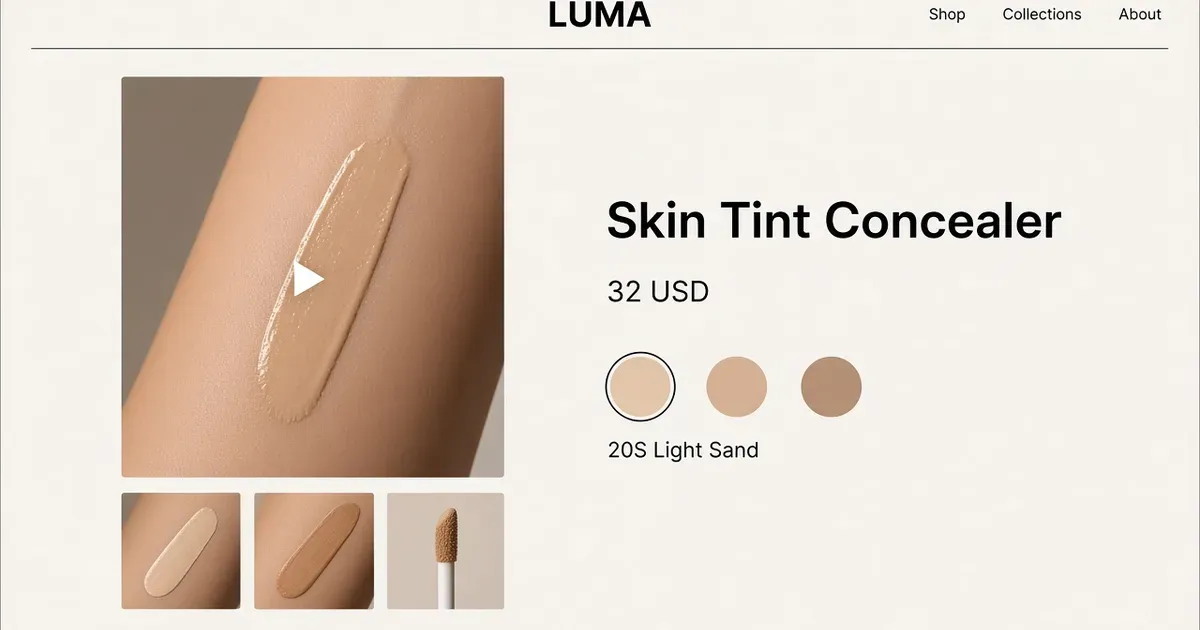
The shade changes, so the video changes
A shopper switches the shade on a concealer. The packaging stays the same, but the swatch must change. Tarte’s Shape Tape page lists 12N fair neutral and 20S light sand as two distinct options, and a pair like that is the right test before you roll out dozens of shades. Tarte’s shade selector
| Selected shade | Assigned media | Shared media |
|---|---|---|
| 12N fair neutral | 12N swatch photo and clip | Applicator photo |
| 20S light sand | 20S swatch photo and clip | Applicator photo |
Set up the gallery in four steps
- Make a two-shade media list. For each variant, gather a clear swatch photo and a clip of that shade. No clip yet? Turn the swatch photo into a short video with AI. Mark the assets that apply to both shades, such as the applicator photo.
- Build the gallery. In Tolstoy, open Widgets → All templates → Shoppable videos → Native Product Gallery → Create my own. It replaces the standard Shopify gallery on the products where you turn it on. Keep the strongest photo first, assign each swatch and clip to its variant, and leave shared assets on both.
- Switch shades in the preview. Select shade A, switch to B, then back to A. Each time, the thumbnail and the playing clip follow the selected shade. Repeat on a phone.
- Publish and check the storefront. Publish the gallery, add the Tolstoy Builder block and code to your Shopify product template, and save. Switch shades once more on the live page. Native Product Gallery controls
Try it in Tolstoy
Draft a gallery for these two shade variants. Keep the applicator image on both. Use each swatch video only on its matching shade and show me both previews before publication.
What to do
- Start with two shades that look clearly different on skin.
- Give every shade its own clip and keep one shared photo for the packaging.
- Switch shades on a phone before you publish, then roll the gallery out to the full range.
Set it up on your own store
Start free, connect Shopify, and run this workflow on your own products. You approve every result before shoppers see it.
FAQ
Can each Shopify variant show its own video?
Yes. In Tolstoy’s Native Product Gallery, assign a swatch photo and clip to each variant. When a shopper selects that shade, the gallery shows its media.
What happens to images that apply to every shade?
Leave them as shared media, such as an applicator or packaging photo. They stay visible on every variant while the swatch media changes.
I don’t have a swatch video for every shade. What can I do?
Make one from the shade’s swatch photo in Tolstoy AI Studio, compare it with the real product, then assign the approved clip to that variant.
How do I remove the gallery from one product?
Turn off Gallery Visibility for that product. Reset clears that product’s custom gallery settings and returns it to Shopify’s media order.
Open it in Tolstoy
Connect your Shopify store and Tolstoy sets up this workflow with you, step by step.